Product relations
Product Relations let you connect products in your catalog so that relevant alternatives or add-ons are shown to shoppers at the right moment. Use them to support cross- and up-selling strategies on your search result pages, product detail pages, or Zoovu experiences.
Create a product relation
In Data Platform, go to Relations in the left-hand menu.
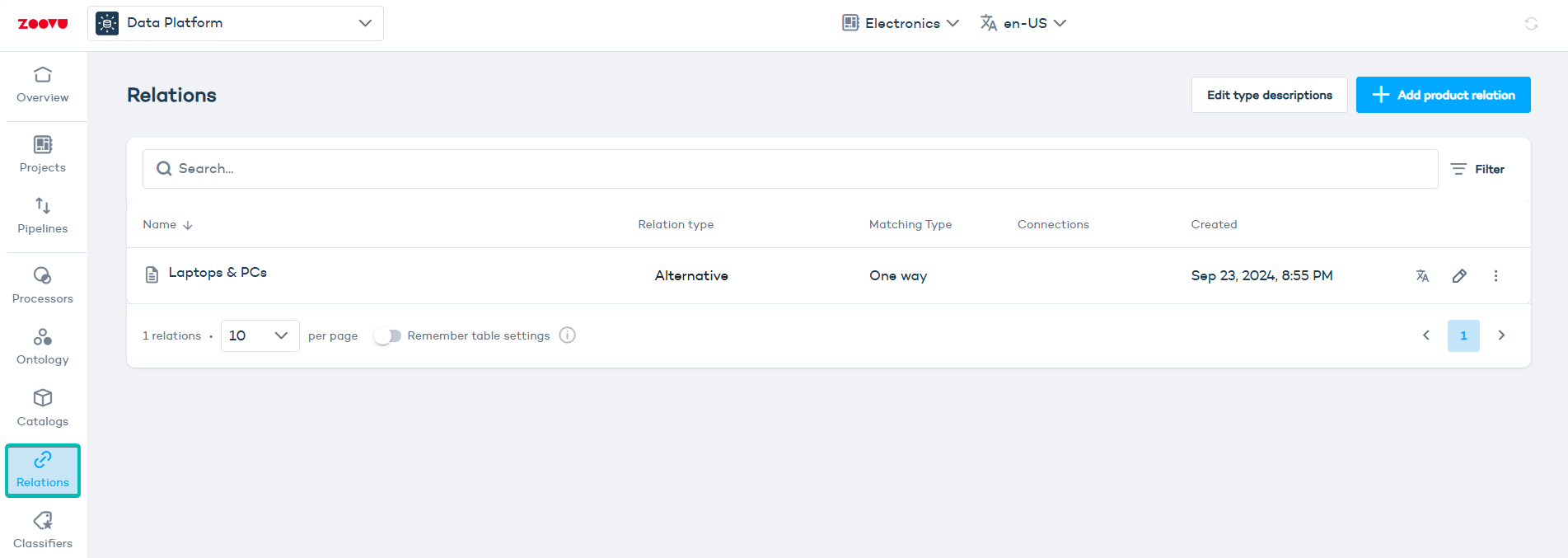
Click Add product relation and fill in the following fields:
- Name — A name for this relation configuration.
- Relation type — Choose one of two types:
- Compatible — Links products that work together, such as a laptop and a mouse.
- Alternative — Links similar products, such as different laptop models at different price points.
- Description — A short label to help you identify what this relation does.
- Two-way matching — Enable this if you want the relation to apply in both directions.
Be careful with two-way matching when the two product sets are very different. It makes sense for a shopper viewing a laptop to see laptop cases as suggestions, but not the other way around.
Configure a product relation
The configuration panel shows two product lists from the catalog(s) connected to your Data Platform project — referred to as the left-side set and the right-side set. Both lists show the same products until you apply filters.
The panel includes:
- Filter — Set rules to control which products appear in each list.
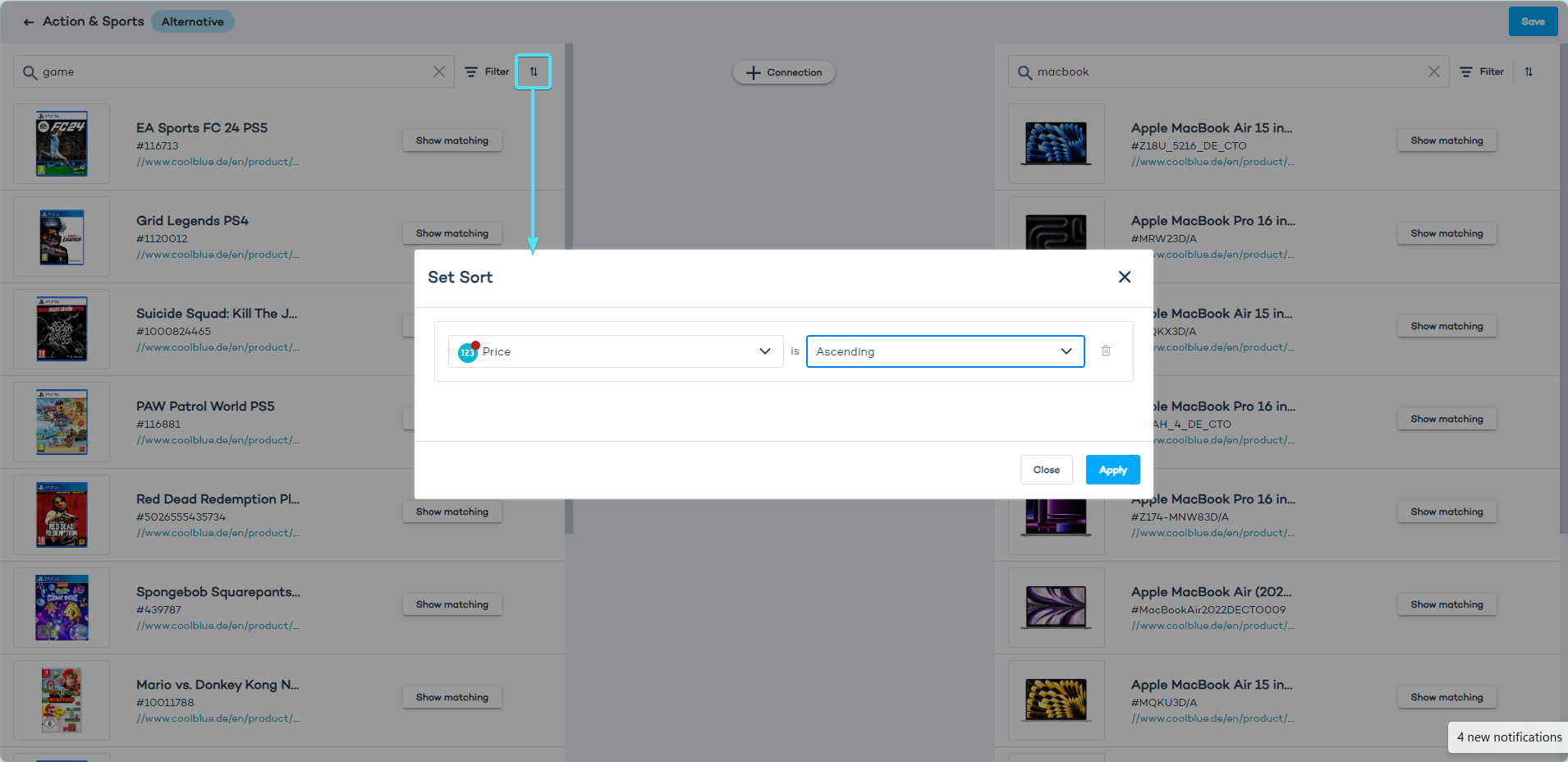
- Sort — Order products by a numeric attribute such as price, ascending or descending.
- Search bar — Look up products by keyword, such as "laptops" or "games".
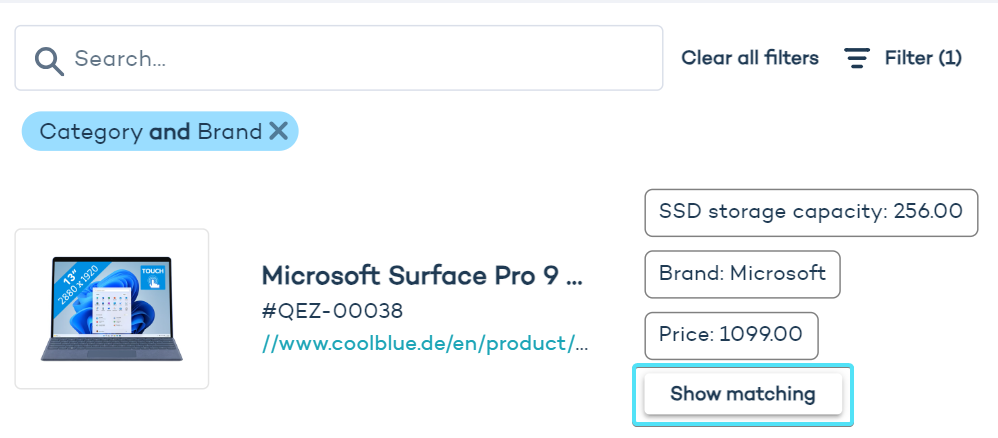
- Show matching — A button next to each product that shows which products it's currently connected to.
- Connection button — Opens the menu where you define how products on the left are matched to products on the right.
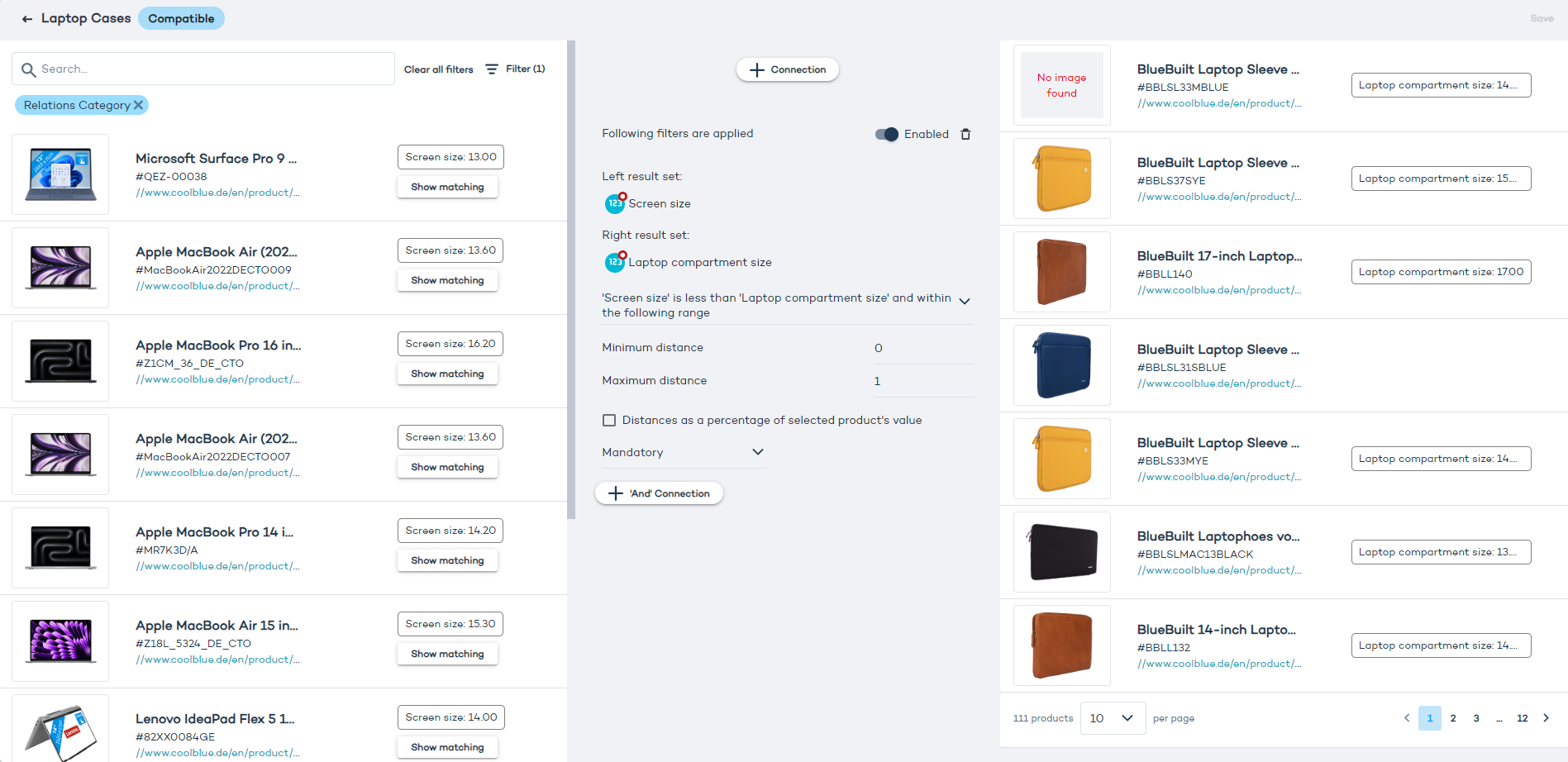
For products to display correctly in the panel - with image, name, and attributes visible - your catalog needs to include all relevant fields (for example, "width" for laptops or "genre" for games).
To see more detail about a product, including its attributes from the catalog, click its image.
Filter products
Use filters to narrow each list down to the right set of products. For example, games of a specific genre, or laptops priced above $1,000.
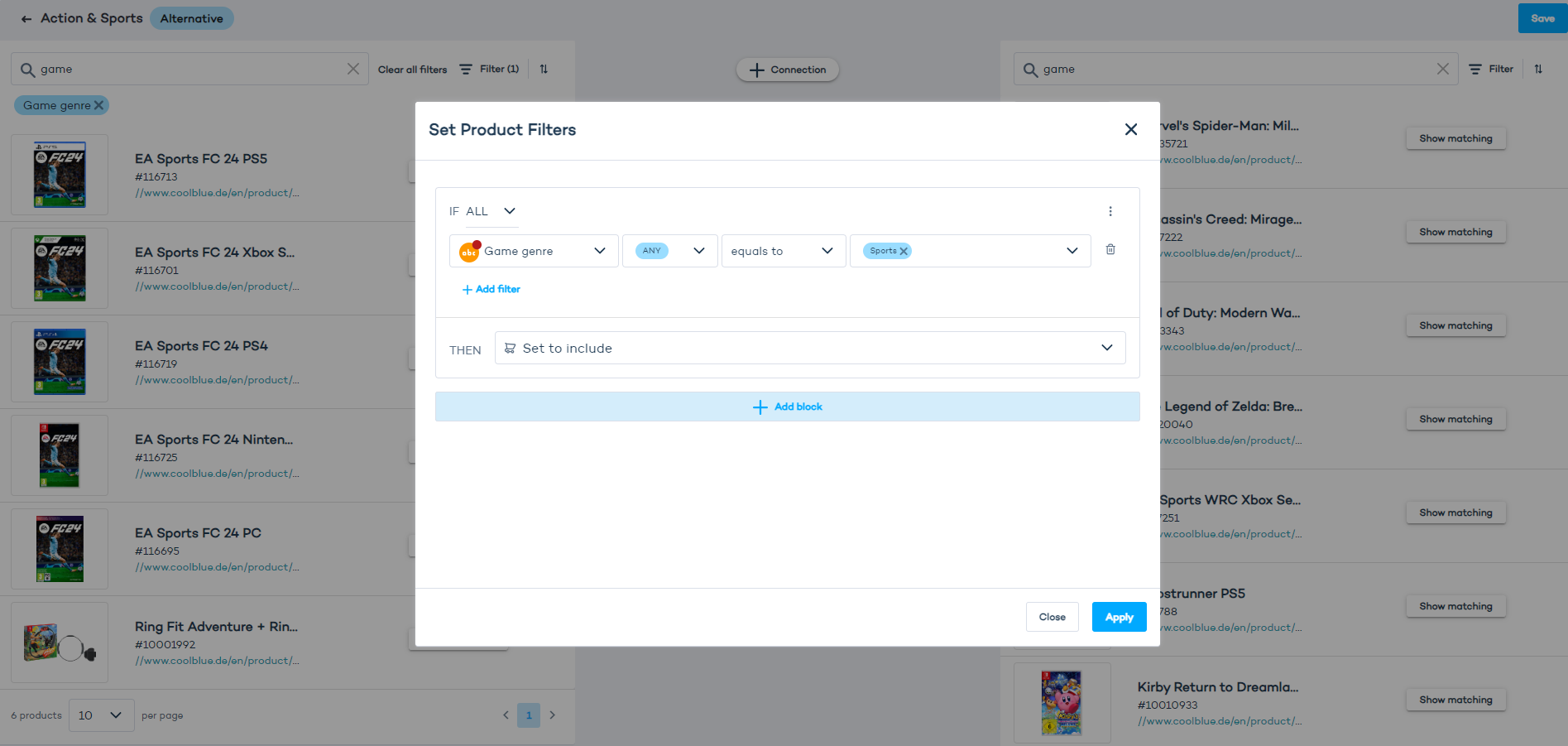
Click Add block to define a filter rule:
- Attribute — The product attribute to filter on (e.g. game genre).
- Operator — Choose from: equals, does not equal, exists, does not exist.
- Value — The attribute value to match (e.g. "Sports" for game genre).
- THEN — Set to include or exclude products matching this rule.
Add as many blocks as needed to get a precise result.
Sort products
Sorting works on numeric attributes like price. Set the order to ascending or descending. In the example below, products are sorted from lowest to highest price.
Create a compatible relation
Compatible relations link products that work together. For example, laptops and laptop sleeves.
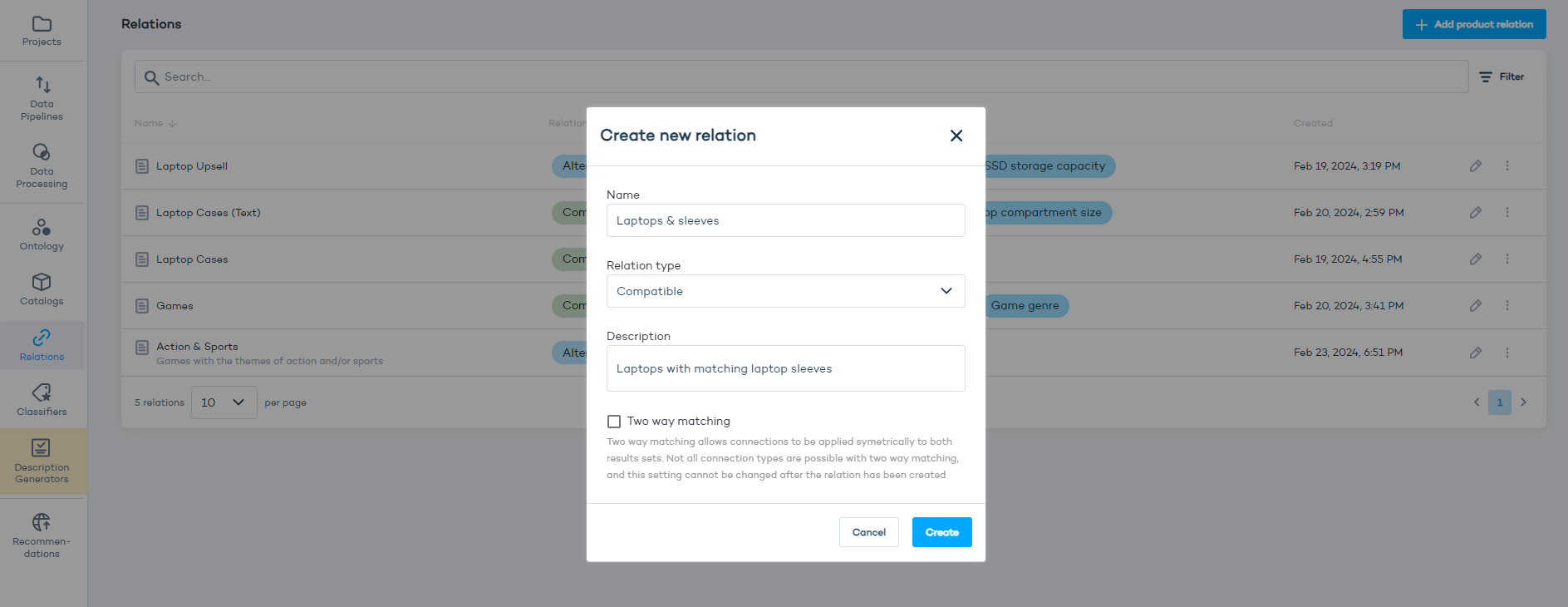
- Click Add product relation.
- Enter a name, select Compatible as the type, and add a description.
- Optionally enable Two-way matching if you want recommendations to apply in both directions.
- Click Create.
- Use the Filter option on the left side to select your first product set. For example, filter by category and select "Laptops".
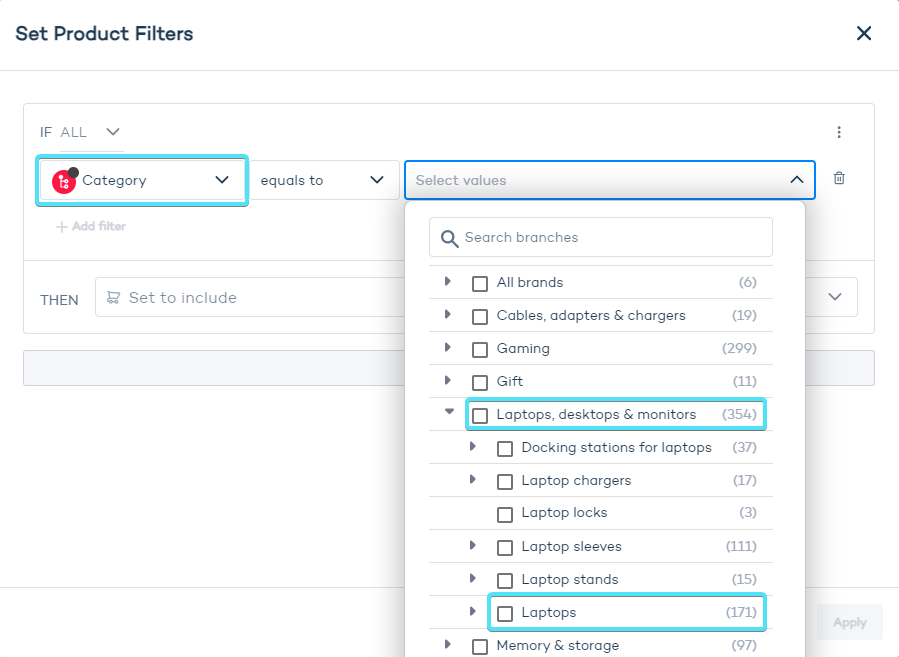
- Apply a filter on the right side to select the related product set. For example, category equal to "Laptop sleeves".
- Click the + Connection button in the middle of the screen.
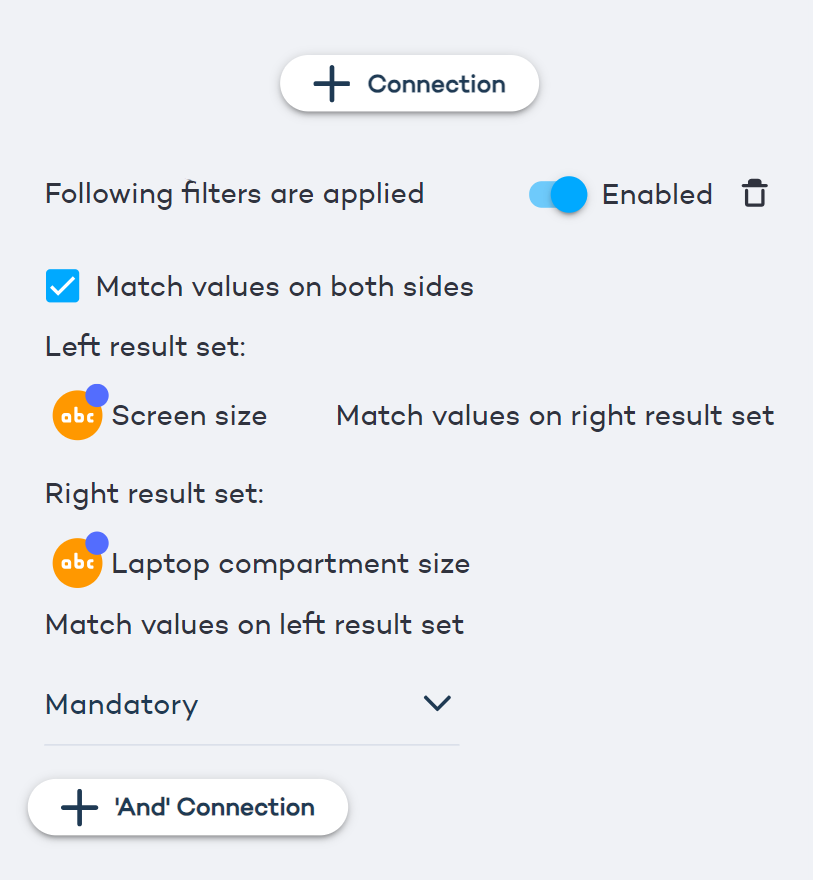
- Enable Multiple attribute connection if you want to match a specific attribute on the left to a different attribute on the right.
Disable Multiple attribute connection if both product sets share the same attribute. For example, when matching products of the same type.
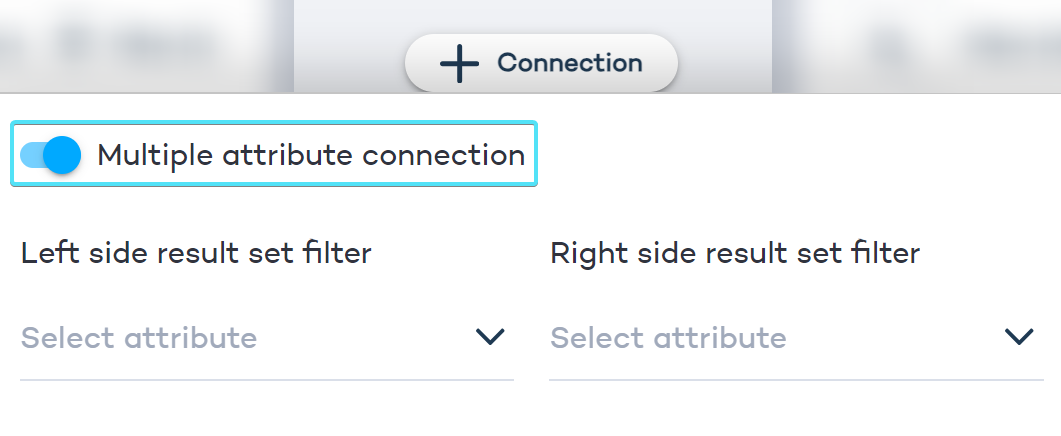
- Configure the left result set — the attribute values for products in the left column (e.g. screen size for laptops).
- Configure the right result set — the attribute values for products in the right column (e.g. size for laptop sleeves).
- Click Save in the top right corner.
Create an alternative relation
Alternative relations link products within the same category — for example, different laptop models. Use them to surface upsell options, such as a laptop with more storage at a slightly higher price.
You can create multiple alternative relations with different configurations to cover different upsell or cross-sell scenarios.
Configure an alternative relation
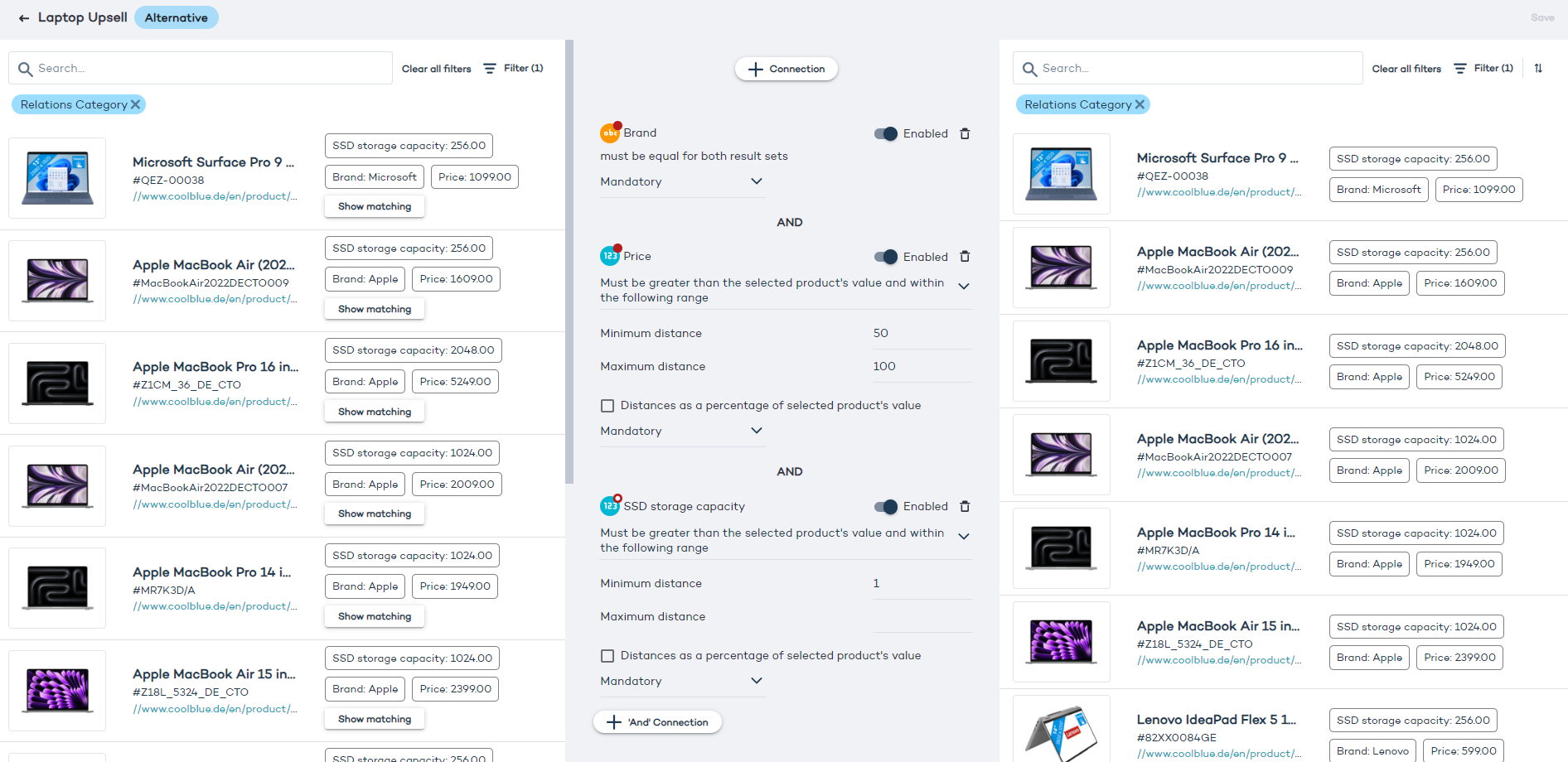
- Define the attributes for both sides. For example, set the "Brand" attribute to "equal for both result sets" so that shoppers only see alternatives from the same brand.
- Set each attribute value as Mandatory or Optional. Optional values may be skipped when there are no matches, which gives more results but with less precision.
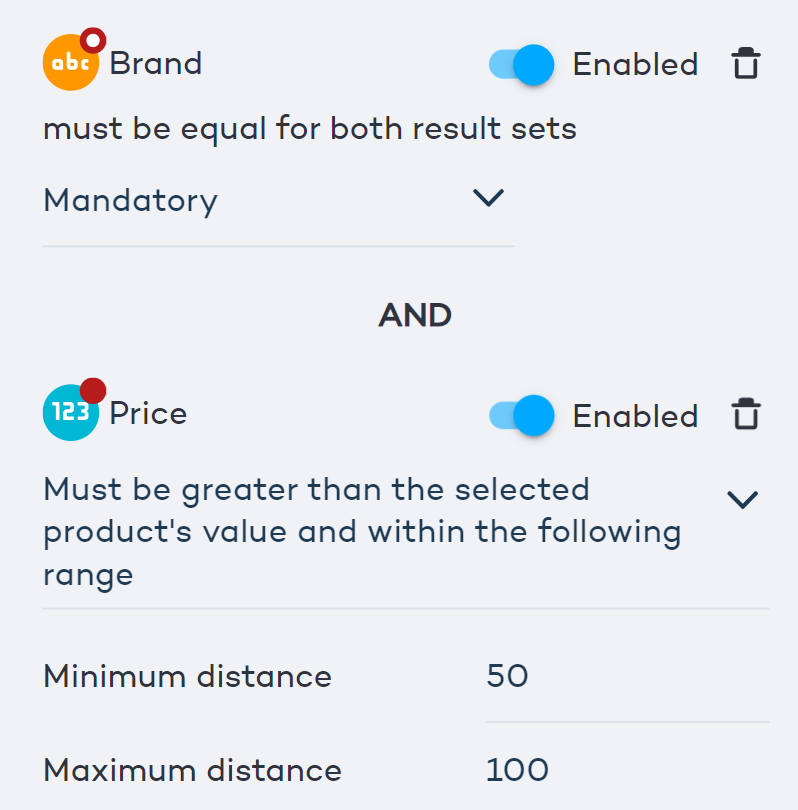
- For numeric attributes like price, set whether the linked product's value should be greater than, less than, or equal to the source product's value.
- Set a minimum and maximum distance. For example, to recommend laptops priced between $50 and $100 more than the current product, set the minimum distance to 50 and the maximum to 100.
- Click Show matching next to any product on the left to verify it's been linked to products on the right.